XPACS Configuration Guide
Most XPACS settings are stored in the database (the Settings table) and edited in the portal under Configuration (administrators only). Hierarchical keys use the form Group:Name (for example, Network:Store:Port).
Bootstrap settings that remain in appsettings.json of each service:
| Setting | Default Value | Description |
|---|---|---|
DbConnectionSettingsPath |
..\dbconsettings.json |
Path to the database connection settings file |
LogFilePath |
Optional path for a daily rolling log file; leave empty to disable file logging | |
Serilog:MinimumLevel:Default |
Information |
Default Serilog minimum log level for the service |
Changing some Configuration values (DICONDE ports, message broker, certificate path, import folder, logger/SMTP used by the logger) triggers a restart of the related XPACS services.
Network
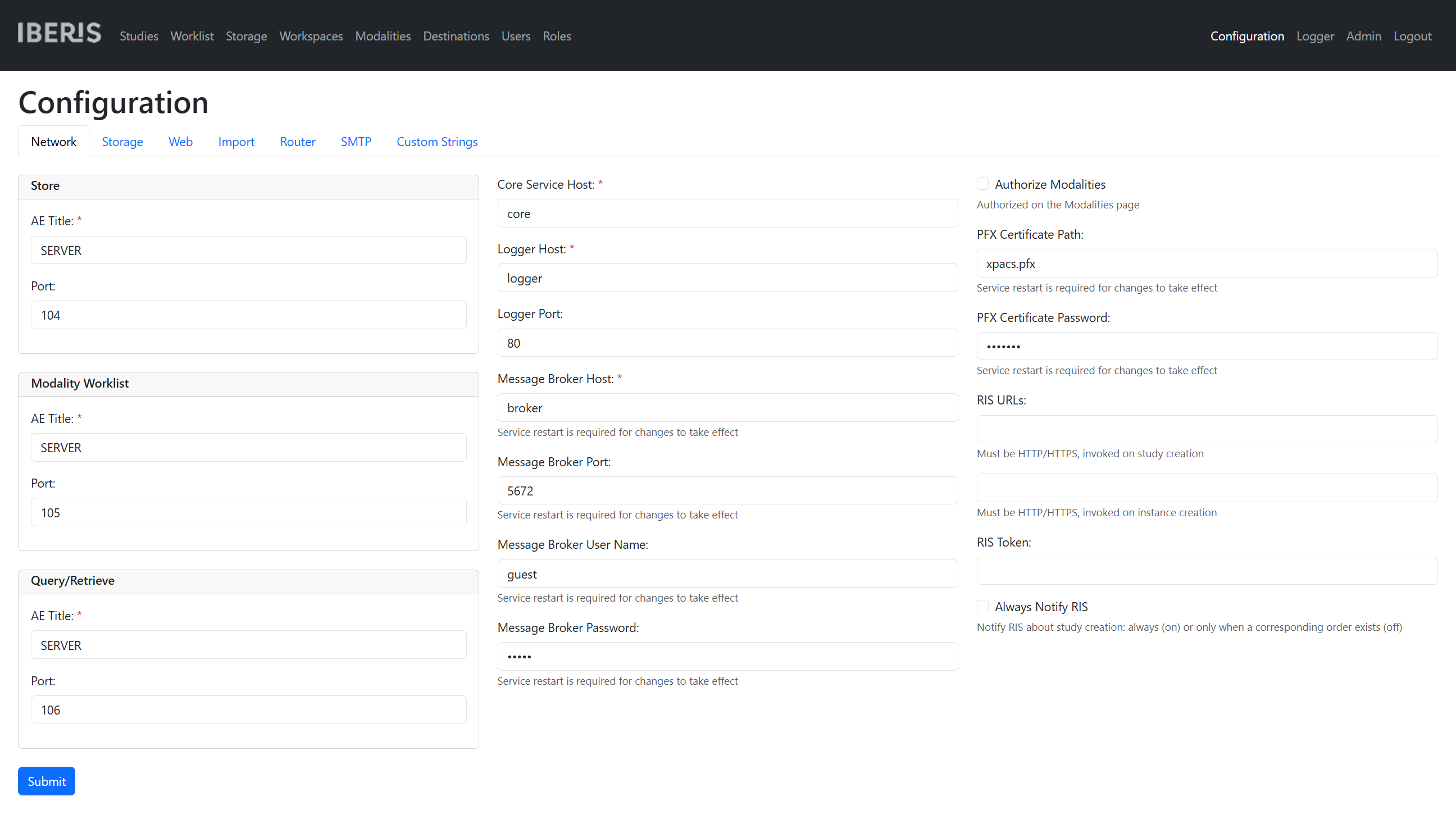
Open the portal, go to Configuration, and open the Network tab.
XPACS exposes three DICONDE channels. Each channel has an AE title and a listening port.
Store
| Setting | Default Value | Description |
|---|---|---|
AE Title |
SERVER |
AE title of the Storage SCP |
Port |
104 |
Listening port of the Storage SCP |
Modality Worklist
| Setting | Default Value | Description |
|---|---|---|
AE Title |
SERVER |
AE title of the Modality Worklist SCP |
Port |
105 |
Listening port of the Modality Worklist SCP |
Query/Retrieve
| Setting | Default Value | Description |
|---|---|---|
AE Title |
SERVER |
AE title of the Query/Retrieve SCP |
Port |
106 |
Listening port of the Query/Retrieve SCP |
Additional network settings:
| Setting | Default Value | Description |
|---|---|---|
Core Service Host |
localhost |
Host name of the XPACS core service |
Logger Host |
localhost |
Seq logger host |
Logger Port |
5341 |
Seq logger port |
Message Broker Host |
localhost |
RabbitMQ broker host |
Message Broker Port |
5672 |
RabbitMQ broker port |
Message Broker User Name |
guest |
RabbitMQ broker user name |
Message Broker Password |
guest |
RabbitMQ broker password |
Authorize Modalities |
off | When enabled, only modalities configured on the Modalities page may connect |
PFX Certificate Path |
Path to the optional PFX certificate for HTTPS (Portal/API) | |
PFX Certificate Password |
Password for the PFX certificate | |
RIS URLs |
HTTP/HTTPS callbacks on study and instance creation | |
RIS Token |
Token for RIS callbacks | |
Always Notify RIS |
off | Notify RIS on study creation always, or only when a matching order exists |
Storage
Storage policy
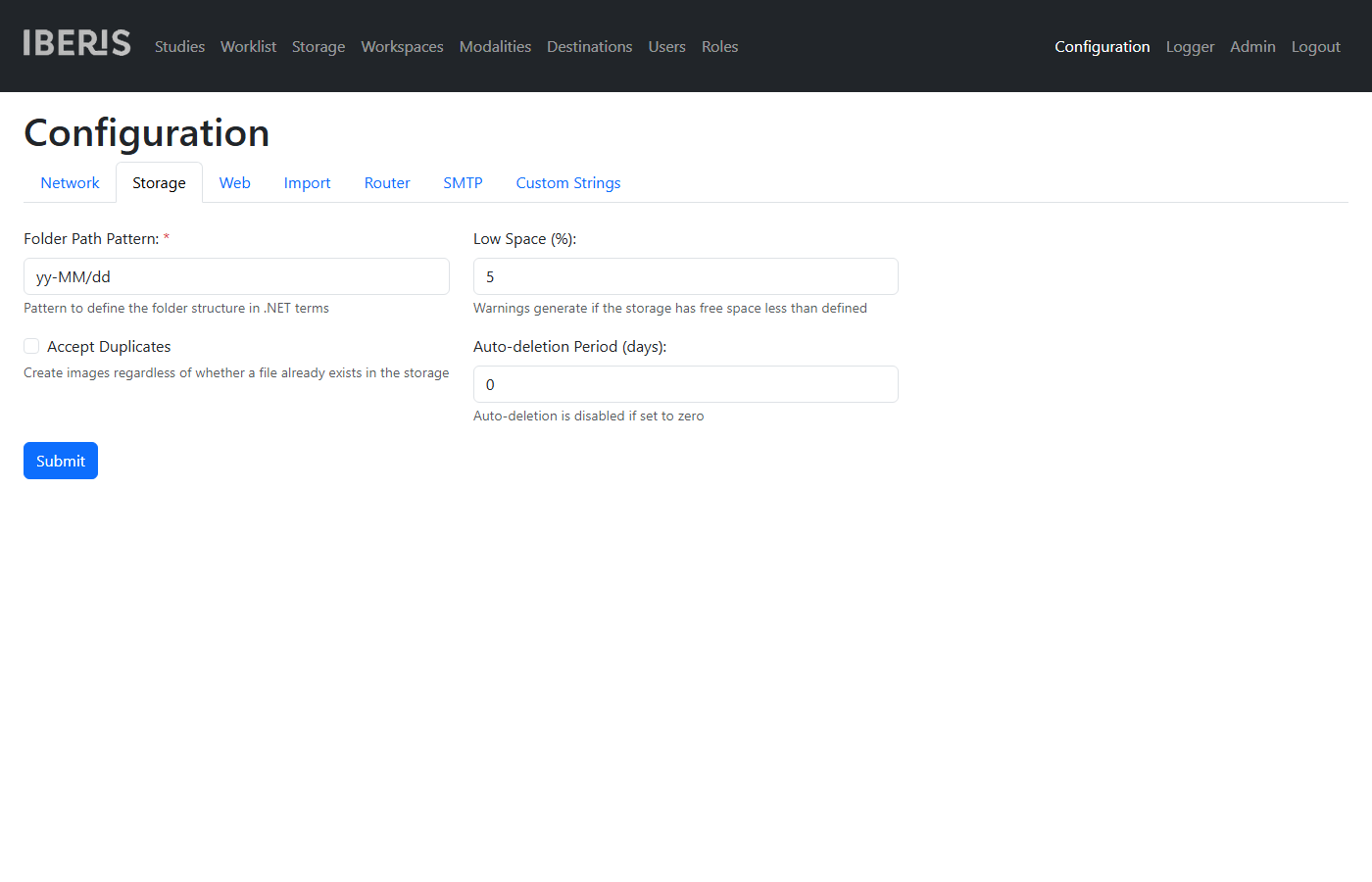
On the Configuration → Storage tab:
| Setting | Default Value | Description |
|---|---|---|
Folder Path Pattern |
yy-MM/dd |
Folder structure under each volume root (.NET date format). The default is year-month/day |
Accept Duplicates |
off | Create instances even if the same file already exists in storage |
Low Space (%) |
5 |
Log warnings when free space falls below this threshold |
Auto-deletion Period (days) |
0 |
Automatically delete aged data; 0 disables auto-deletion |
Volumes
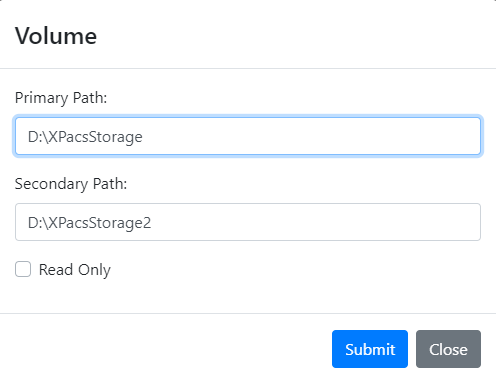
File volumes are managed on the Storage page. Click New to add a volume or Edit to change an existing one. Enter the Primary Path and the optional Secondary Path. Disable write access for full volumes with Read Only. Click Submit to save, or Delete to remove a volume. A volume that still contains data (instances) cannot be deleted.
Web
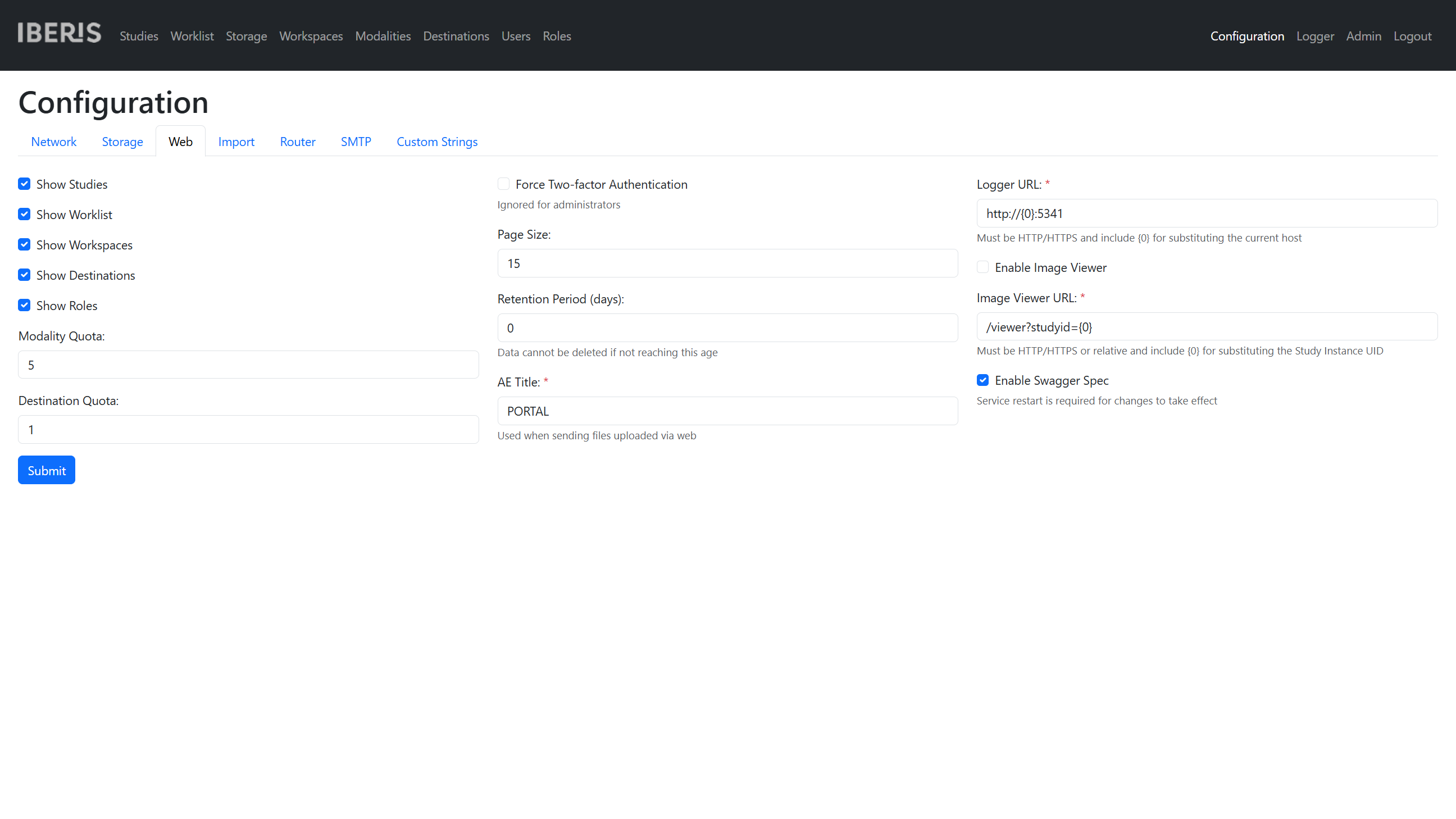
On the Configuration → Web tab:
| Setting | Default Value | Description |
|---|---|---|
Show Studies |
on | Show the Studies module in the portal navigation |
Show Worklist |
off | Show the Worklist module in the portal navigation |
Show Workspaces |
off | Show the Workspaces module in the portal navigation (see Advanced Configuration Guide) |
Show Destinations |
off | Show the Destinations module in the portal navigation (see Advanced Configuration Guide) |
Show Roles |
off | Show the Roles module in the portal navigation (see Advanced Configuration Guide) |
Modality Quota |
5 |
Maximum number of modalities that can be created |
Destination Quota |
1 |
Maximum number of destinations that can be created |
Force Two-factor Authentication |
off | Require TFA for non-administrator users |
Page Size |
15 |
Page size for paginated lists |
Retention Period (days) |
0 |
Data cannot be deleted until it reaches this age (in days) |
AE Title |
PORTAL |
Calling AE title when the portal sends uploaded files to the core service (Storage SCP) |
Logger URL |
http://{0}:5341 |
Seq UI URL; {0} is replaced with the current host |
Enable Image Viewer |
off | Enable the image viewer action in the portal |
Image Viewer URL |
/viewer?studyid={0} |
Viewer URL; {0} is the Study Instance UID |
Enable Swagger Spec |
on | Exposes the OpenAPI UI for the Web API |
The AcuScreen viewer can be used by setting Image Viewer URL to dicom://localhost?DicomServerName=XPACS&StudyUid={0}. The DicomServerName value must match the AcuScreen Settings → Network server name.
Import
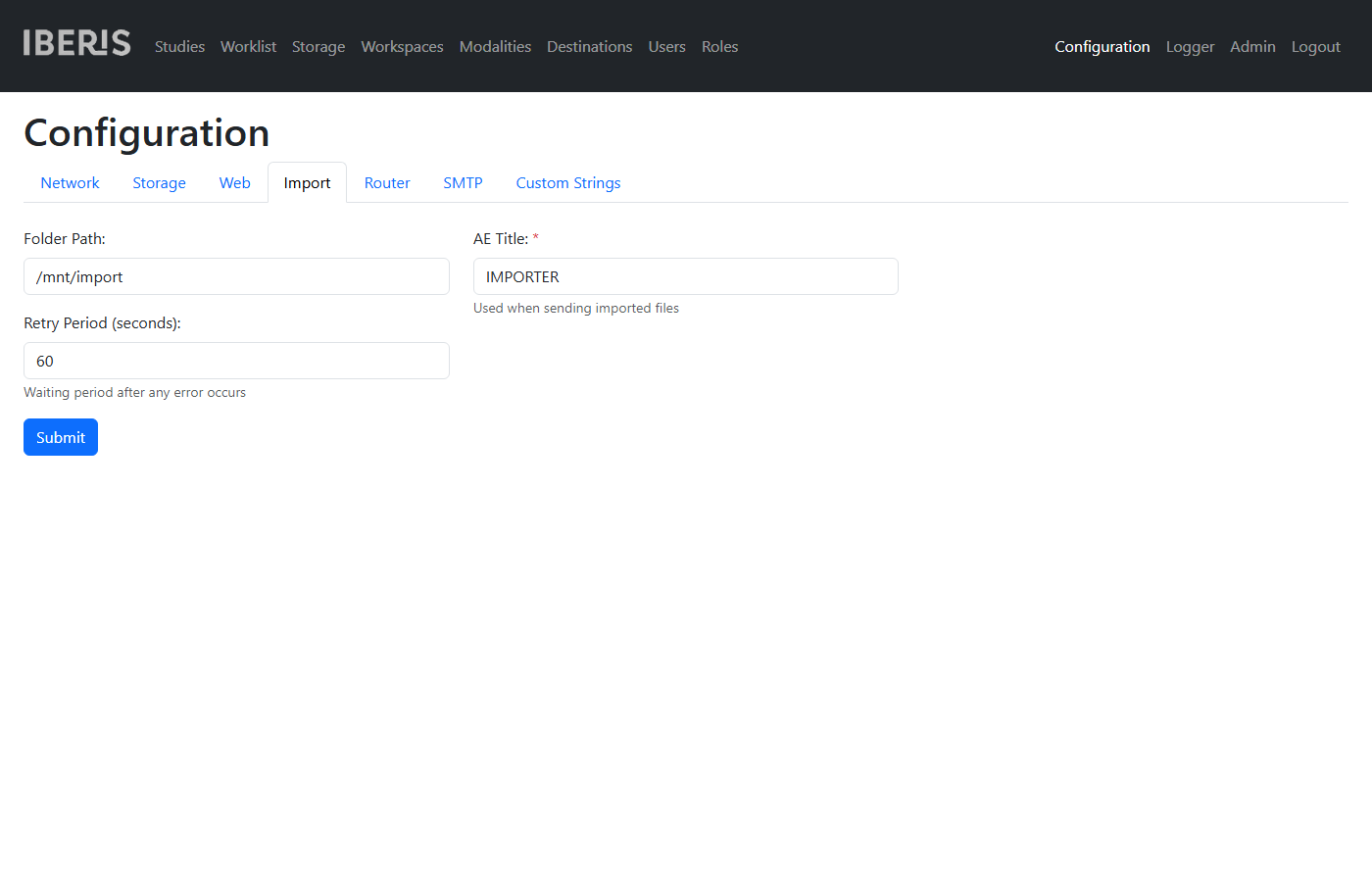
On the Configuration → Import tab:
| Setting | Default Value | Description |
|---|---|---|
Folder Path |
Folder watched for incoming files | |
Retry Period (seconds) |
60 |
Delay before retrying after an error |
AE Title |
IMPORTER |
Calling AE title when sending imported files to the core service (Storage SCP) |
Router
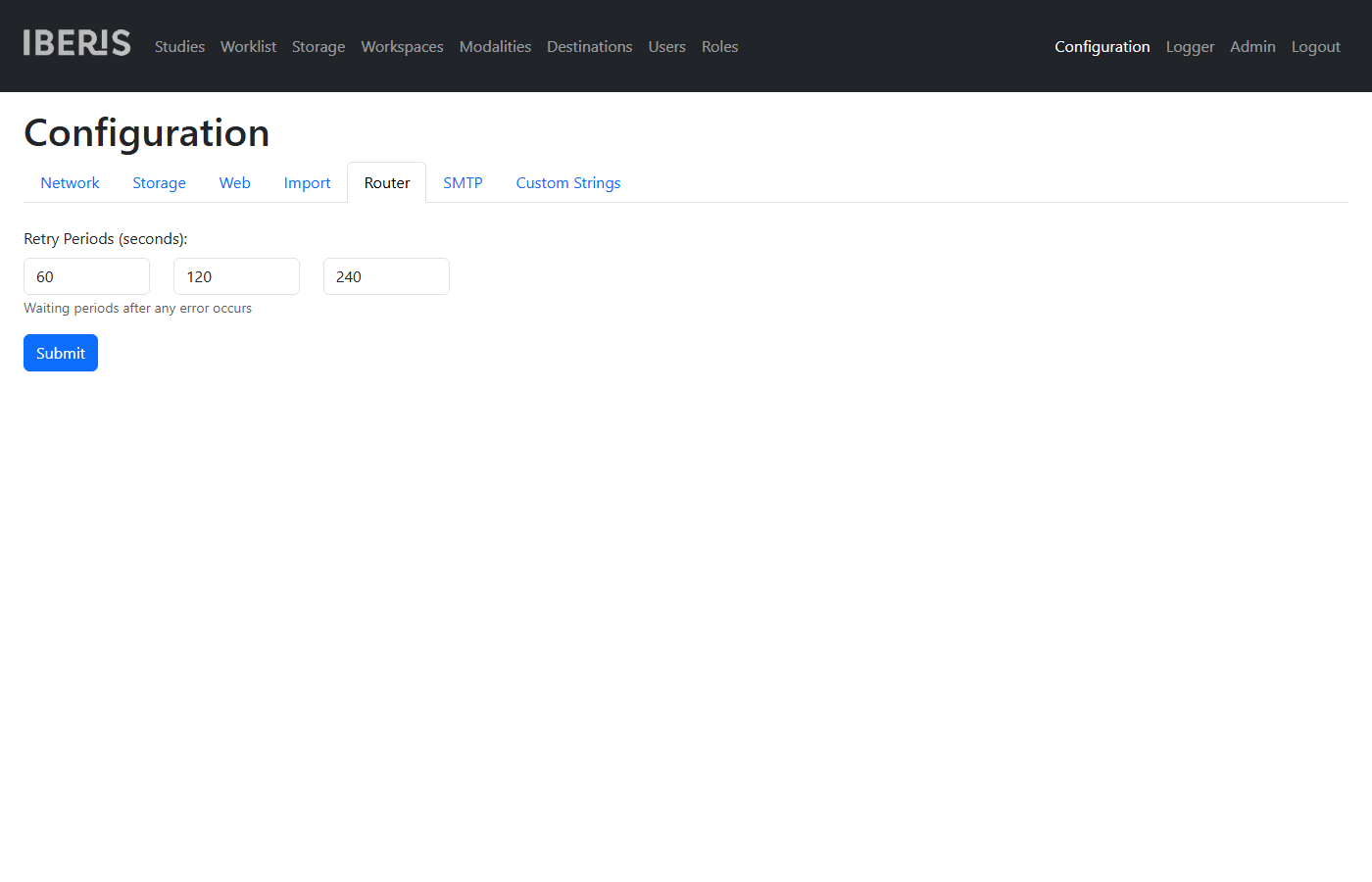
On the Configuration → Router tab, configure three Retry Periods (seconds) used after a routing error. Defaults: 60, 120, 240.
SMTP
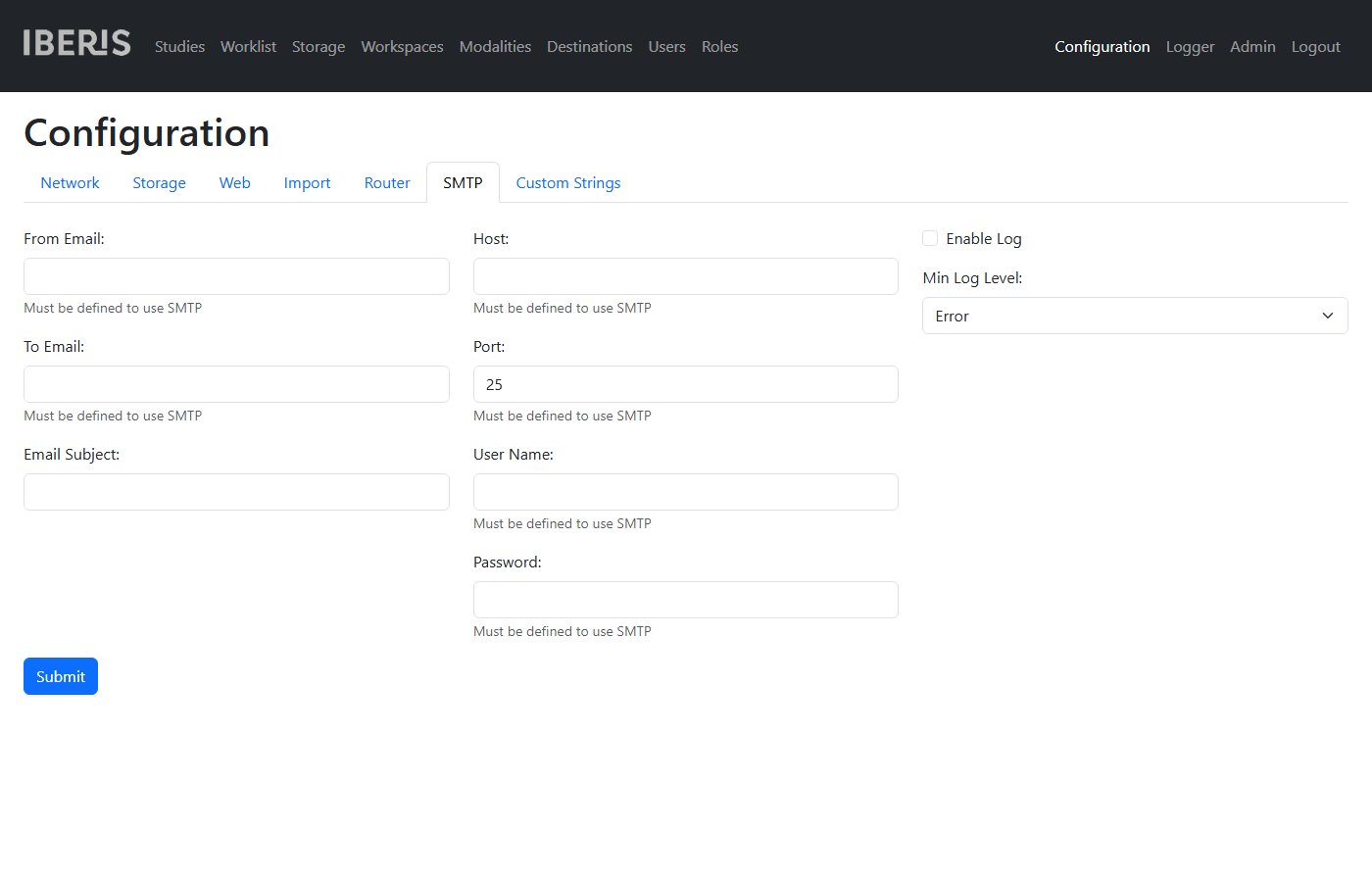
On the Configuration → SMTP tab, configure outbound email used for log alerts. From Email, To Email, Host, Port, User Name, and Password are required to use SMTP.
| Setting | Default Value | Description |
|---|---|---|
From Email |
Sender address for log alert emails | |
To Email |
Recipient address for log alert emails | |
Email Subject |
Subject line for log alert emails | |
Host |
SMTP server host | |
Port |
25 |
SMTP server port |
User Name |
SMTP authentication user name | |
Password |
SMTP authentication password | |
Enable Log |
off | Send log events by email |
Min Log Level |
Error |
Minimum log level to email when Enable Log is on |
Custom Strings
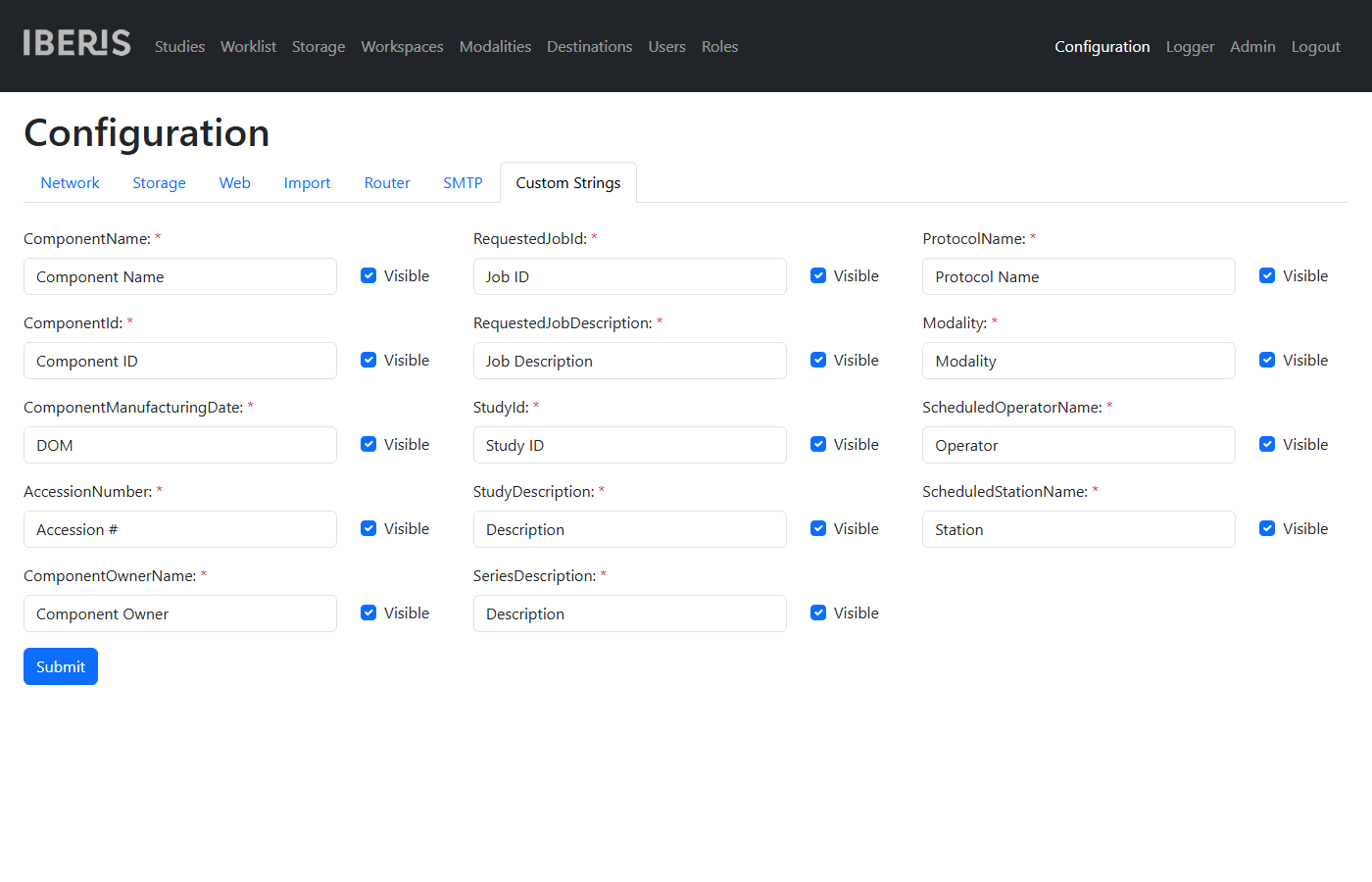
On the Configuration → Custom Strings tab, customize UI labels and their visibility for study/series fields (for example Component Name, Component ID, Accession Number, Study Description, Protocol Name). Each string can be shown or hidden with the Visible checkbox.
Modality Authorization
When Authorize Modalities is enabled, configure allowed AEs on the Modalities page. Click New or Edit, enter the modality AE Title, and optionally Host to restrict by IP address. Enable or disable access per DICONDE service with the checkboxes. Click Submit to save, or Delete to remove the modality.
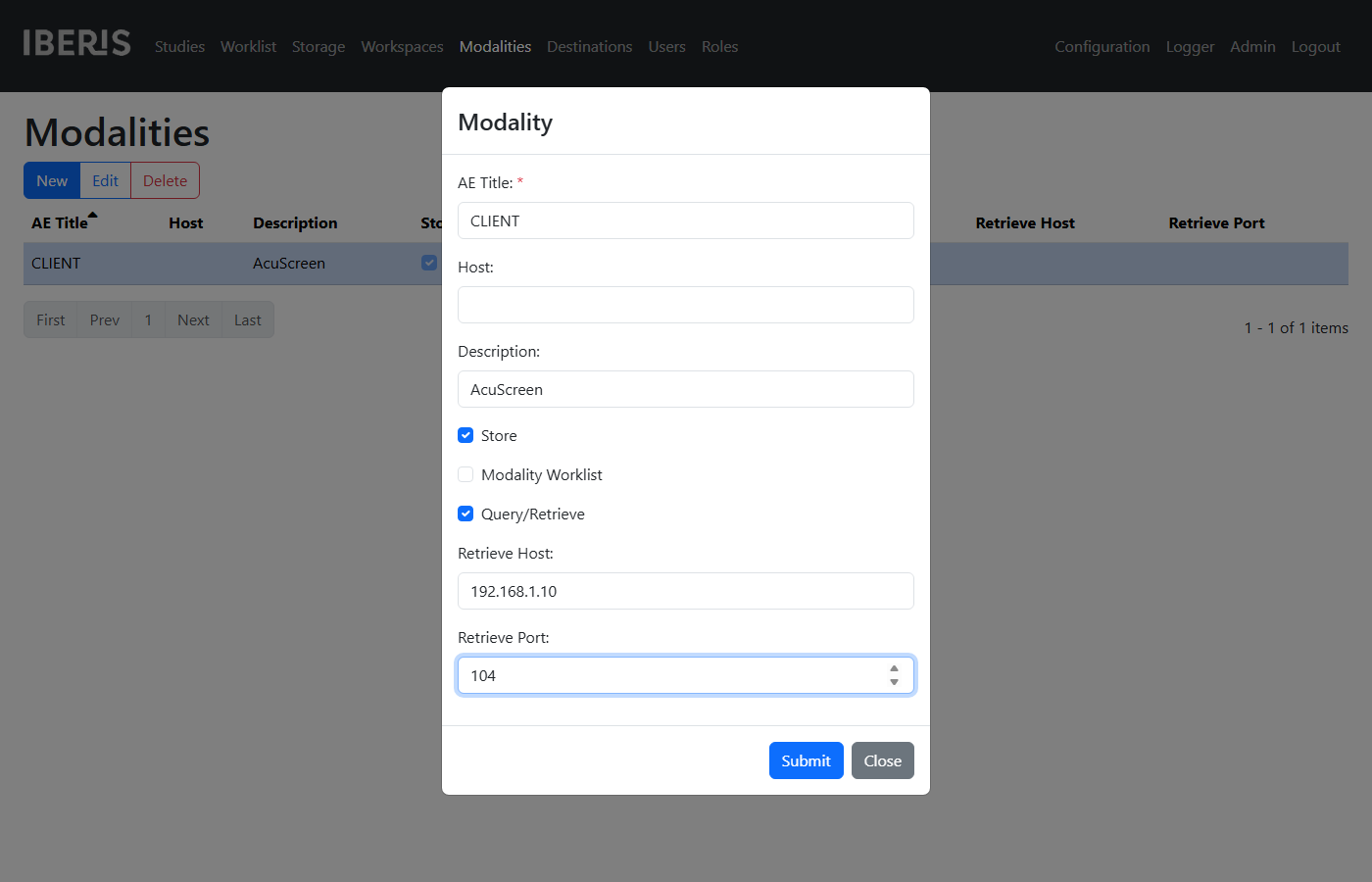
If a modality retrieves data with C-MOVE instead of C-GET, set both Retrieve Host and Retrieve Port so XPACS can open a Storage association to that destination AE.
User Authorization
Portal users are managed on the Users page. Click New or Edit, enter Name, and set Password with confirmation (Password may be omitted when editing an existing user). Optionally set Logging Alias (used instead of Name in logs). Choose a category:
Administrator— full access (permissions do not apply)Manager— can manage users and other administration pages; data access is controlled by permissionsOrdinary— data access is controlled by permissions
Set permissions (Upload, Download, View, Edit, Delete, Send, Move) for Manager and Ordinary users. When Show Roles is on, an optional Role can be assigned; see Advanced Configuration Guide. When workspaces are enabled, select Workspaces so non-administrators only see studies and destinations in those workspaces. A user can activate two-factor authentication (TFA) and will be asked to scan a QR code; Force Two-factor Authentication can require TFA (ignored for administrators). Click Submit to save, or Delete to remove another user of the same or lower category.
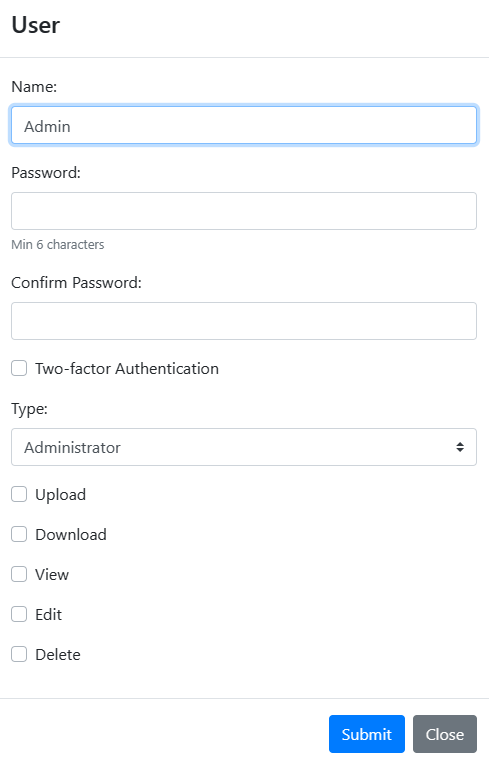
Note! A newly initialized XPACS database contains the user Admin with the Administrator category and a random password. Obtain the password by sending the activation key shown at startup to your XPACS distributor.
HTTPS Certificate (PFX)
To enable HTTPS for Portal/API, prepare a PFX certificate file and set PFX Certificate Path/PFX Certificate Password on the Configuration → Network tab. A service restart is required for the change to take effect.
Prepare Self-Signed SSL Certificate
Create a private key and X509 certificate:
Convert the certificate file to a pfx file:
Prepare Authorized SSL Certificate
Run Certbot to automatically get free HTTPS certificates. Follow instructions to create a certificate for an XPACS host in the command line and renew it automatically before it expires.
Open folder /etc/letsencrypt/live/<hostname> and convert the certificate file to a pfx file:
Re-run this command after the certificate expires and update the file referenced by PFX Certificate Path.
For Docker-based installations, copy the PFX into the Portal/API containers (prefix can be xpacs, root, etc.):